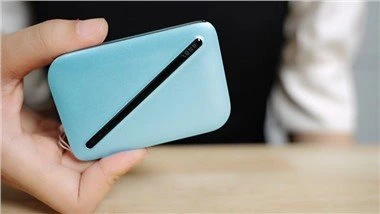
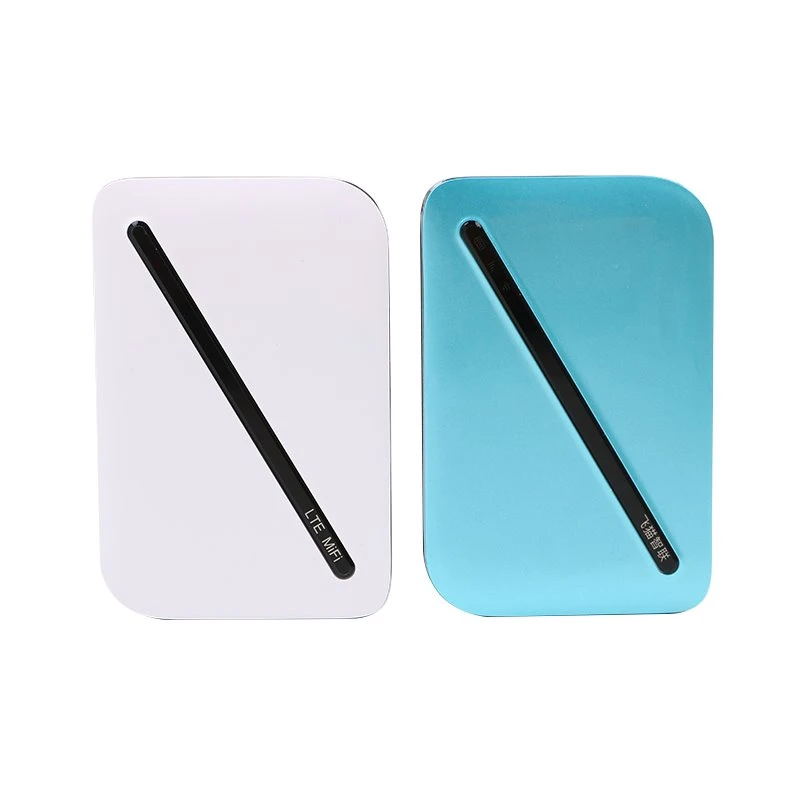
Portable Pocket 4G LTE MIFI is a high speed packet access mobile hotspot. It is a multi mode wireless terminal for SOHO (Small Office and Home Office) and business professionals.It provides users with packet data services and SMS through multiple network modes. You can connect the micro USB port on the Portable Pocket 4G LTE MIFI to a computer using a micro USB data cable, or connect multiple devices to the 4G Terminal over Wi Fi. In the service area of the network, the pocket router allows you to surf the Internet and send/receive messages/emails providing you with a fast, reliable, and convenient user experience. It also helps carriers improve their average revenue per user. | 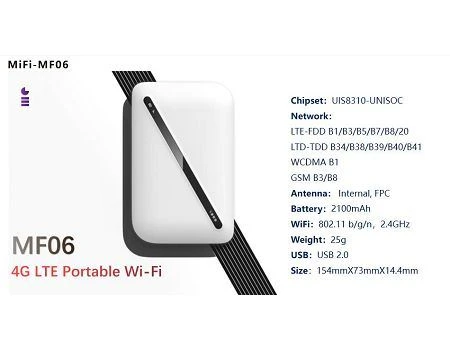 |
Getting To Know Your Portable Pocket 4G LTE MIFI
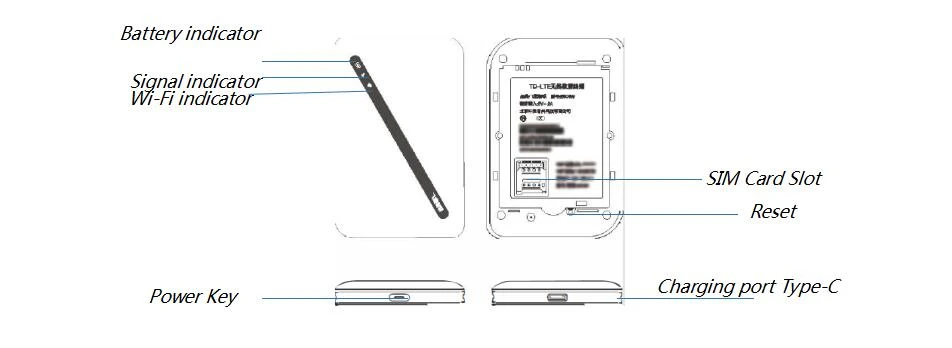
LED Definition | |||
LED Name | Color | Condition | Description |
Power LED | Red | Blinking | Power on |
Red | Solid on | Battery<10% | |
Yellow | Solid on | 10%< Battery<30% | |
Green | Solid on | 30%< Battery | |
Red | Blinking | Charging | |
Green | Solid on | Charging finish | |
LTE Signal Indicator | Red | Solid On | Bad signals or NO SIM |
Green | Blinking | On process of reading SIM | |
Green | Solid on | Good signals | |
Yellow | Blinking | Weak singals | |
Wi-Fi Indicator | Green | Solid on | Wi-Fi standby |
Blue | Solid on | Devices connected | |
Red | Solid on | Wi-Fi not working | |
Charge Head
| Technical Parameters | Charge Head |
Input | 100-240V~50/60Hz 200mA |
Output | 5.0V/1.0A |
Maximum Output Current | 1000mA |
Technical Parameters | Car Charge |
Input | DC 12~24V |
Output | DC 5.0V/1.0A |
Maximum Output Current | 1000mA |
Installing and Removing Carrier SIM Card 1.Power off MF06. 2.Remove the back cover of MF06. 3.Insert Carrier SIM Card into card slot in the correct position. 4.Install back cover of MF06. 5.Power off MF06 Before you take out the Carrier SIM Card. Note: Do not remove the Carrier SIM Card when MF06 power on. Otherwise, the card and MF06 may be damaged. | 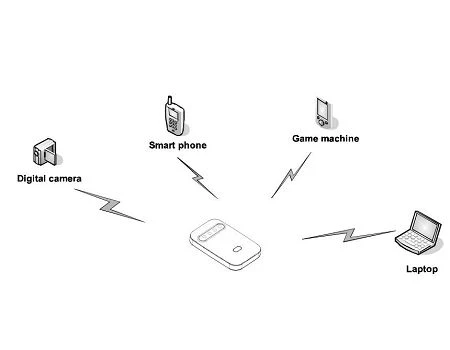 |
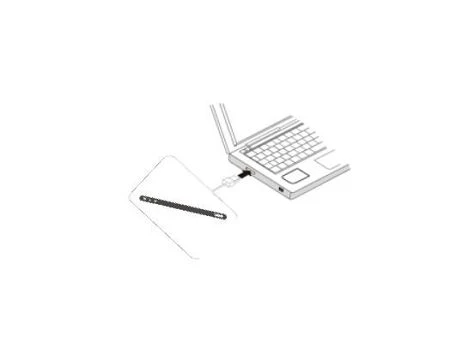 | Connection Scenarios Scenario 1: Multi-device Internet access using Wi-Fi (MF06 power on) Scenario 2: One-device Internet access using computer Using the Power Adapter to charge MF06 Connect the MF06 to the power adapter’s USB port, and connect the power adapter to a power outlet. Note:Only use power adapters compatible with the MF06 and provided by a designated manufacturer. USB of an incompatible power adapter or one from an unknown manufacturer may cause the MF06 to malfunction, or could even cause a fire. Such use avoids all warranties, whether expressed or implied the product. |
If you are uncertain of which Wi-Fi settings you have configured or changed, you can restore the factory defaults that come with MF06, and reconfigure the device Wi-Fi setting. ●Power on MF06, Press and hold the Reset button for 3 seconds to restore Wi-Fi to factory default settings. ●Power on MF06, and connect to it. Login in to the management page http://192.168.0.1. Go to Router > Reboot Router > , click “Reboot Router” button to restore Admin Setting and Wi-Fi Setting to factory default settings. Note: Reset button on device will deletes all the device’s user-defined Wi-Fi settings and restore Admin Setting and Wi-Fi Setting to factory defaults. |  |
 | Setting Up a Wi-Fi Connection 1.Ensure that the MF06's Wi-Fi function is available. 2.To setup a computer with MF06, choose “Wireless > Wireless setting”. Note: To set up a Wi-Fi connection, your computer must have a wireless network adapter installed. If Wireless Network Connection is displayed, means a wireless network adapter is available. Otherwise, check to make sure you have a wireless network adapter installed. 3.Click View available wireless networks to view the wireless network connection. 4.Select the wireless network connection which service set identification (SSID) is the same as that of the MF06, click Connect and input the WiFi Password. Note: ●Default SSID will be mentioned on the device. ●Wait until a wireless network connection icon is displayed in the lower right corner of the computer screen. A wireless network connection is set up. |
Hot Tags: portable pocket 4g lte mifi, China portable pocket 4g lte mifi suppliers, factory, Indoor 4G CPE Desk Router, LTE Router, portable router battery, 150Mbps LTE Pocket 4G Router, 4G Travel router, Mobile Broadband Router